
Build NXS plugins
Instruments and effects that run in your browser, play live with your collaborators, and can be shared with everyone on Audiotool.
See existing plugins →Build with Google Spaces
Spaces in Google Flow Music builds instruments and effects from a plain description. It's free and runs in your browser.
- 1
Open Spaces and press “New space”.
Open Spaces in Google Flow Music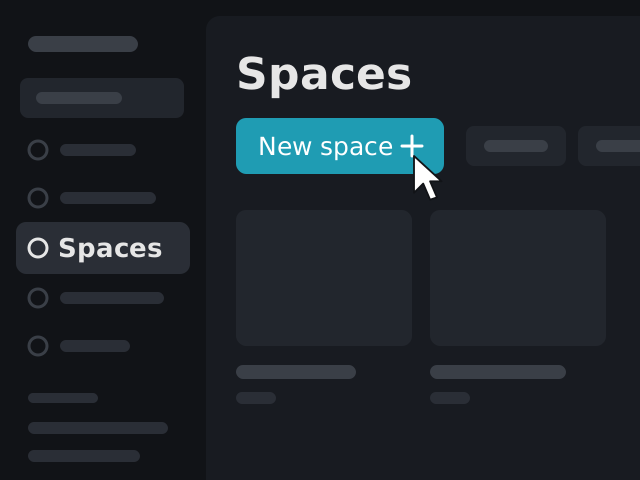
- 2
Describe your plugin. Say what effect or instrument you want and how it should sound.
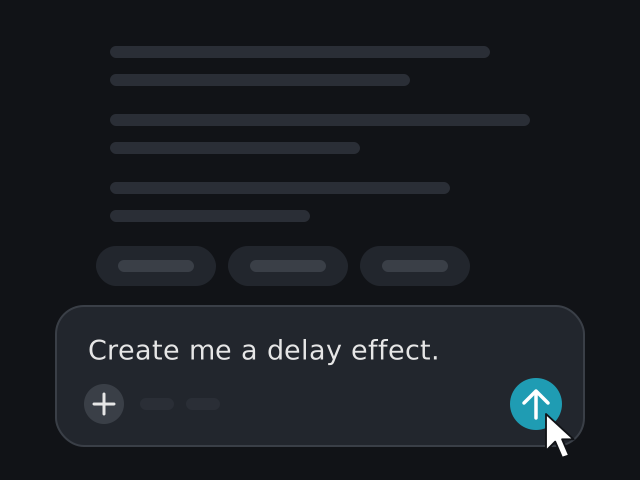
- 3
Download it. Press “Use in DAW”, then “Download” with your plugin's name.
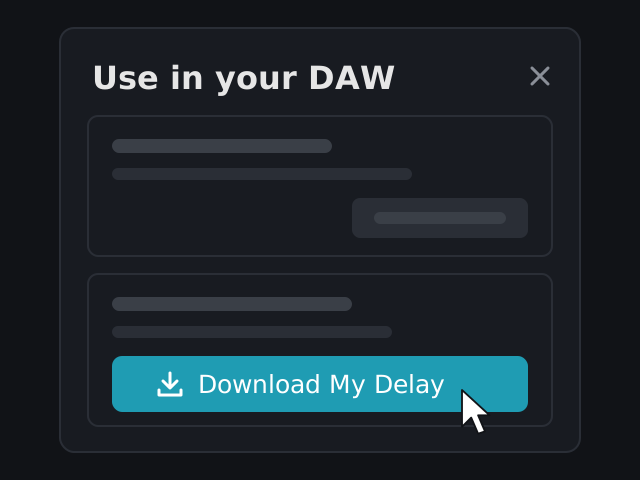
- 4
Upload it to Audiotool. Go to the plugin browser, press “Upload”, then select the file you just downloaded.
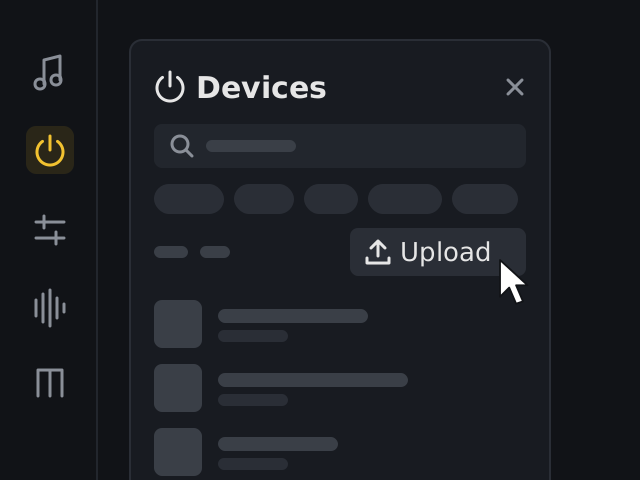
- 5
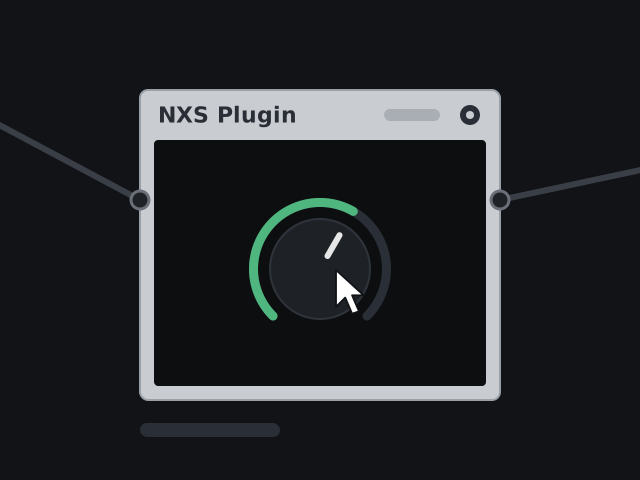
Try it in your project. Your plugin appears as a device. Play with it and tweak it until you're happy.
- 6
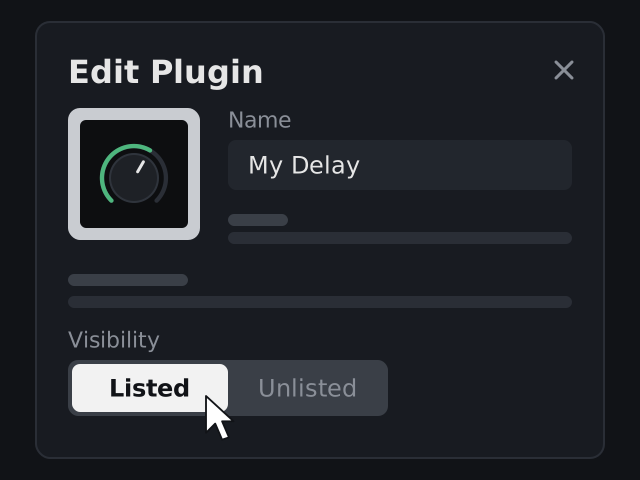
Publish it. On the plugin screen, you can add an icon and a name. Once you're happy with how it sounds and looks, set “Visibility” to “Listed”. This publishes your plugin for others to use. You don't have to publish it to use it in your own tracks.
- 7
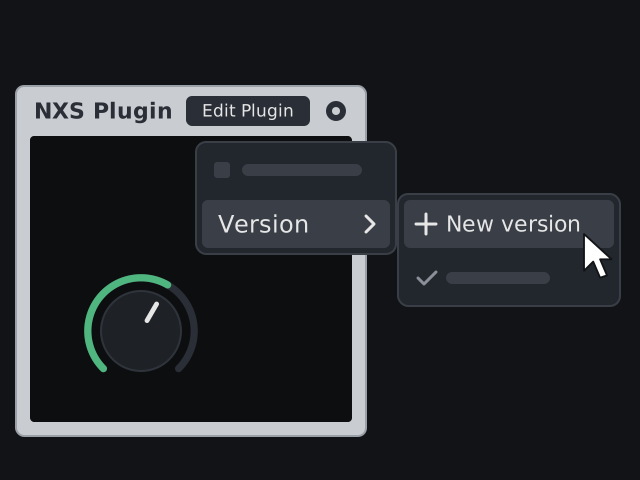
Update it. To upload a new version of the same plugin, find the plugin on the desktop, press “Edit Plugin”, then select “Version” and “New version”. Devices added from then on use the new version. Plugins already in a project are not affected.
Build with your coding agent
Want more complex sound, your own interface, or full control over the DSP? Build with the coding agent you already use.
- 1
Install the Audiotool skills.
- 2
Describe your plugin. For example:
Build an NXS plugin: a four-voice chord synth with one macro knob.
- 3
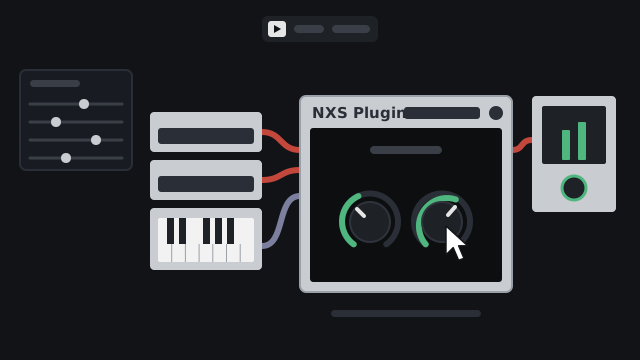
Test your plugin. Your agent presents the plugin to you like this. Iterate with your agent until you're happy.
- 4
Upload and publish.
What people are building
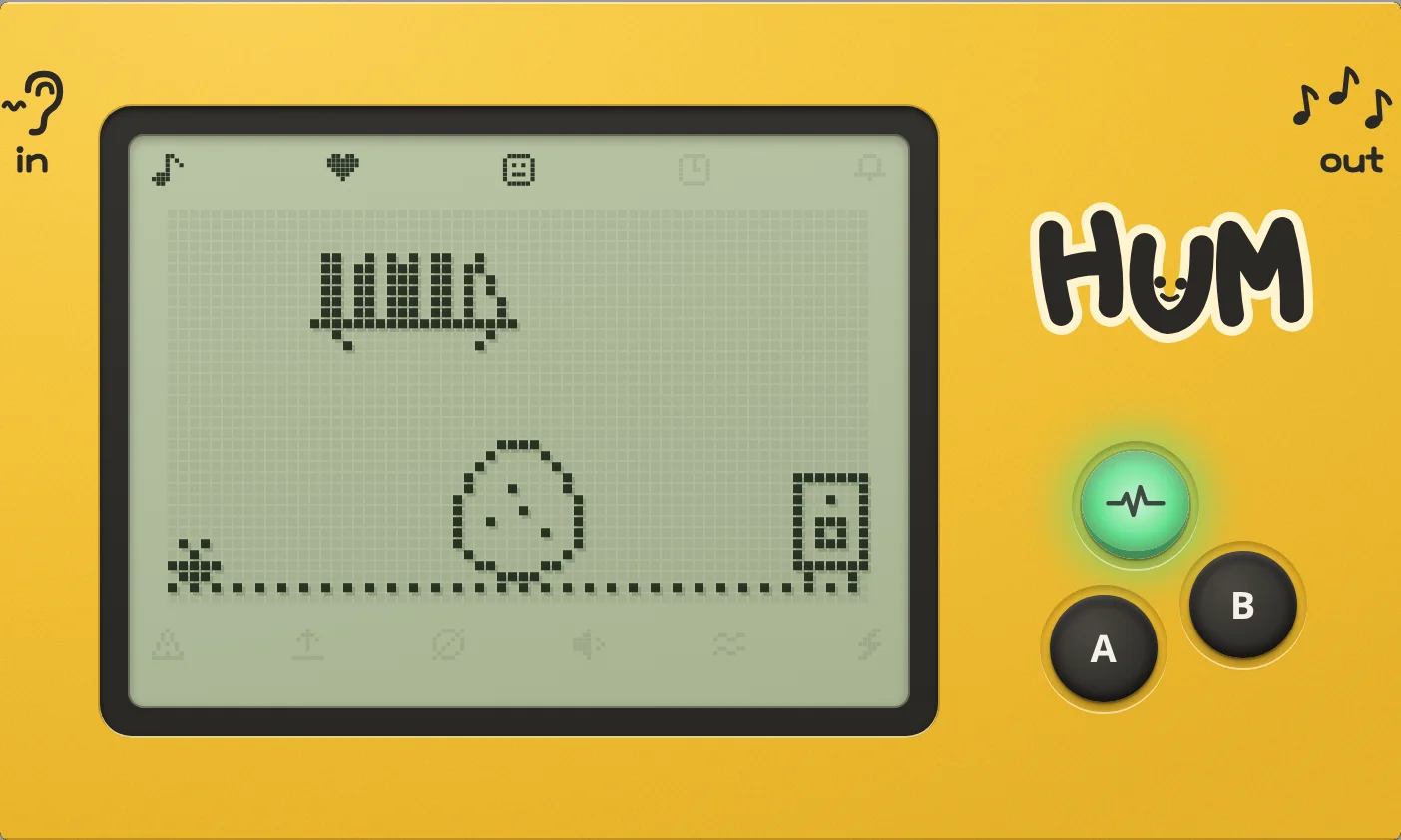
HUM
A tiny pet that lives on your mix and reacts to what it hears.
FAQ
What capabilities can a plugin have?
- Type
- Instrument or effect
- Parameters
- Up to 1024, all automatable unless you say otherwise
- Inputs
- One audio input, one sidechain input, one note input
- Output
- One audio output
- State
- Custom state up to 64 KiB, saved with the project and synced to collaborators
- Interface
- Your own HTML page, 800 × 600 by default
- Runs in
- The studio, the VST Bridge, and server rendering for published tracks
Is it free?
Yes. Spaces, Audiotool and publishing plugins are all free.
Do I need to code?
No. Spaces builds plugins from a description. Coding agents are there when you want more.
Who owns my plugin?
You do. When you publish it, others can use it on Audiotool, and what they make with it is theirs.
Can my plugin use samples?
Not yet: plugins can't load audio files.
Can a plugin send MIDI or have several outputs?
Coming soon.